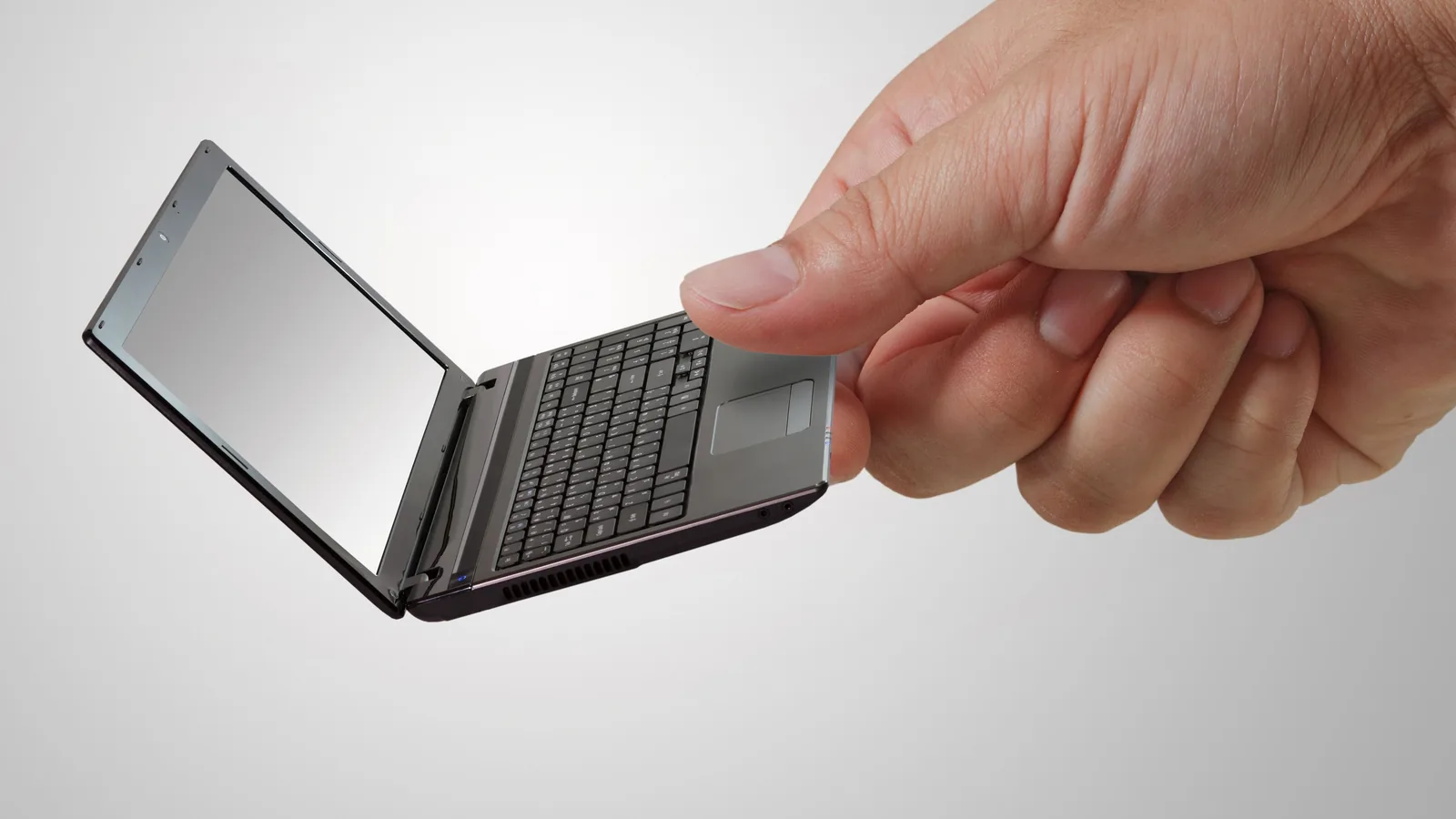
Mini Personal Computers
A practical step-by-step guide to mini personal computers, including preparation, instructions, common issues, tips, and next steps.
Mini Personal Computers
Mini personal computers are small, quiet desktop PCs that take up a fraction of the space of a traditional tower. This guide walks you through choosing, setting up, and optimising a mini PC for work, home, or light creative tasks, and it covers the compatibility checks that prevent costly mistakes.
Fast Answer
- Best starting spec for most people: 16 GB RAM, 512 GB SSD, and a modern quad-core processor
Before You Start
- Decide your main use: office work, streaming, light photo editing, or as a home server
- Measure the space where you plan to put the mini PC, including clearance for cables and airflow
- Check what ports your monitor, keyboard, and mouse use — most modern ones use HDMI, DisplayPort, or USB-C
- Confirm your monitor has the right cable, or plan to buy an adapter before the mini PC arrives
- Know your Wi-Fi router type, so you can choose a model with matching Wi-Fi 6 or Wi-Fi 6E support
Step-by-Step Instructions
Choose the right processor and memory for your workload
The processor, or CPU, is the brain of your mini PC. For everyday tasks like web browsing, email, and word processing, a modern quad-core processor is enough. If you plan to edit photos, compile code, or run many browser tabs at once, look for a six-core or eight-core model with a higher clock speed.
RAM is just as important. 16 GB of RAM is the sweet spot for most people in 2026, and it handles multitasking comfortably. If you only do light office work, 8 GB can work, but you may feel the limits when many tabs are open. For video editing or virtual machines, choose 32 GB.
Select storage that matches your speed and capacity needs
Almost every mini PC today uses an SSD, or solid-state drive, instead of a spinning hard drive. A 512 GB SSD is the recommended minimum for most users, and it boots in seconds. If you store large video files or a big game library, pick 1 TB or more.
Check which SSD generation the mini PC supports. NVMe drives are faster than older SATA drives, and the newest PCIe 4.0 or 5.0 models move data especially quickly. You will notice the difference most when copying large folders or launching heavy software.
Verify ports and wireless connections before you buy
Mini PCs are compact, and their ports are one of the main reasons people love them, but every model has a different layout. Count the USB-A ports for your keyboard, mouse, and printer. Check for at least one USB-C port if you want to connect a modern phone or a portable SSD at full speed.
For video, you normally need at least one HDMI port and one DisplayPort for a second monitor. If your monitor is older and uses VGA or DVI, plan for an active adapter. Wi-Fi 6 is now standard on most mid-range and premium mini PCs, and it gives you faster, more stable wireless connections, especially in busy homes.
Set up your mini PC for the first time
Start by unpacking the mini PC and placing it on a flat, hard surface with good airflow. Do not block the vents, and keep at least 10 centimetres of clearance behind the unit if the fan exhaust sits at the rear. Connect the monitor cable, plug in the keyboard and mouse, and then connect the power adapter.
Press the power button and follow the on-screen Windows setup. Choose your region, language, and Wi-Fi network. Create a local account, or sign in with your Microsoft account if you want cloud syncing and app store access. Let Windows install updates, and restart when the system tells you to, because a fully updated system is more stable and secure.
Declutter, update drivers, and check system stability
Once Windows is running, open the Settings app and check for updates. Then, open the manufacturer’s support page and download the latest drivers for your specific model. Pay special attention to graphics, Wi-Fi, and chipset drivers because these often improve performance and fix bugs after the original release.
After a reboot, open the Task Manager and watch the CPU and memory usage. Open a few programs and browser tabs to see if anything spikes. Run the system for an hour doing normal tasks, then check if the fan is loud or the unit is too hot to touch. A healthy mini PC should run silently or with a very light hum during casual use.
Connect a second monitor for multitasking
If your mini PC has two video outputs, plug a second monitor into the other port. Windows may detect it automatically and extend the display. If the second screen stays black, press the Windows key plus P, and choose “Extend” from the menu that appears on the primary display.
For best results, set both monitors to the same resolution, or at least the same scaling, to avoid text looking blurry on one screen. Right-click the desktop, choose Display Settings, and select the monitor you want to adjust. Drag the boxes that represent each display to match how you physically placed them, so your mouse glides naturally between the screens.
Adjust power settings for performance or energy savings
Windows power plans control how aggressively your mini PC saves energy. For a desktop machine, the default Balanced plan is usually fine. If you edit video or play games, switch to the High Performance or Ultimate Performance plan, if your model offers it, to stop the processor from slowing down during heavy moments.
For a mini PC used as a home server or a download box, switch to the Power Saver plan, and set the display to turn off after 10 minutes. The machine will keep running in the background, but it uses less electricity, and your electricity bill stays down.
Enable BitLocker or device encryption for security
If you store work documents or financial files on your mini PC, turn on encryption so a thief cannot read your data after removing the drive. Search for “Manage BitLocker” in the Start menu, and choose “Turn on BitLocker” for your system drive. Windows will ask you to choose a recovery key, and you should store that key in a safe place, such as a password manager or a printed copy in a drawer.
BitLocker encryption takes a few minutes, and it runs in the background while you keep using the computer. It encrypts your drive with a strong algorithm, so even if someone pulls out the SSD, the data stays locked without your password or recovery key.
Place the machine well and make a recovery plan
Do not hide a mini PC inside a closed cabinet or behind a stack of paperwork. They need airflow to stay cool, and trapped heat weakens performance over time. If your desk has a cable tray beneath it, mount the mini PC there with the included VESA bracket, so the top stays clear and the vents stay open.
Before you finish, create a system restore point. Right-click the Start button, choose System, then System Protection, and create a restore point. A restore point lets you roll back Windows if a driver update or a misbehaving program breaks something later, which is the fastest escape from a major problem.
Quick Reference
| Situation | Use this | Why |
|---|---|---|
| Office work, email, web browsing | Quad-core processor, 8–16 GB RAM | Cheaper and silent, with plenty of speed for everyday tasks |
| Photo editing or light video | Six-core or eight-core CPU, 16–32 GB RAM | Renders filters and exports faster without freezing |
| Home server or download box | Power Saver plan, always-on sleep setting | Keeps energy use low while the system runs in the background |
| Two 4K monitors at 60 Hz | HDMI 2.0 or DisplayPort 1.4 outputs on both ports | Older ports at 30 Hz make the mouse cursor feel laggy |
| Security for work files | BitLocker drive encryption | Protects data even if someone removes the SSD |
Common Problems When You Set Up a Mini PC
- No display on the monitor: Check the monitor cable is secure on both ends, then verify the mini PC is using the correct video port. Press the Windows key plus P to cycle through display modes, and restart both the monitor and the PC before you worry about hardware failure.
- Wi-Fi keeps dropping: Move the mini PC closer to your router, or use the ethernet port instead. Update the Wi-Fi driver from the manufacturer’s website, because old drivers commonly fix intermittent disconnects.
- Fan is too loud: Clean the air vents with a can of compressed air, and check that nothing is blocking the exhaust. If the noise only happens during heavy tasks, adjust your power plan to Balanced to reduce heat.
- System is slow on startup: Open Task Manager, go to the Startup tab, and disable programs you do not need at log-in. Many apps add themselves to startup, and they slow down every boot.
- Monitor is blurry or stretched: Right-click the desktop, choose Display Settings, set the recommended resolution, and check that scaling is set to 100% for the best text clarity.
Advanced Tips for Getting More From Your Mini PC
- Enable Resizable BAR if you play games: Some newer models support this BIOS setting, which lets the processor access all graphics memory at once. It boosts frame rates in several modern titles, and it is a free performance gain.
- Use the VESA mount: Most mini PCs come with a bracket that screws onto the back of a compatible monitor. This turns your whole setup into an all-in-one look, freeing valuable desk space.
- Run the mini PC as a media server: Install Plex or Jellyfin, point it at your video folder, and stream your collection to any TV in the house. The low power draw makes a mini PC ideal for a 24/7 media server.
- Set a custom fan curve: If your BIOS allows it, adjust the fan curve so it stays quieter during light work and ramps up before the processor gets hot. A lower idle speed also reduces dust build-up.
- Back up to an external SSD weekly: Use Windows File History or a free tool like Duplicati to copy your documents and photos automatically. An external drive with one terabyte of space is enough for most households, and it separates your data from the machine itself.
Mini Personal Computers FAQ
- Can a mini PC replace a desktop tower? For the vast majority of home and office tasks, yes. Mini PCs handle web browsing, office suites, media streaming, and even light photo editing easily. They only struggle with heavy 3D gaming or 4K video editing, and for those tasks, a larger desktop with a graphics card is still the better choice.
- Are mini PCs upgradeable? Many models let you upgrade RAM and storage, but not the processor or graphics chip. Check the specifications before you buy, and look for models that say “upgradeable RAM” or have two SODIMM slots plus a free M.2 bay.
- How long will a mini PC last? With good ventilation and regular cleaning, a mini PC can run for 5 to 7 years before you feel the need to upgrade. The largest factors are the CPU generation and whether your software demands more RAM over time.
- Do I need a separate graphics card? No. Mini PCs rely on integrated graphics built into the processor. That is plenty for everyday work and even some light gaming, but you cannot add a dedicated GPU to most models, so buy the best CPU you can afford if graphics matter to you.
- Can I connect a laptop to a mini PC? Not directly. They are separate computers. You can share files over your network, or use software like Remote Desktop to control the mini PC from your laptop, but there is no cable that links the two as one machine.
Final Checklist
- Processor, RAM, and storage match the workload you expect
- Video ports support your monitor, cables, and desired refresh rate
- Wi-Fi and ethernet options match your network and connection speed
- Vents are clear, and the unit sits on a hard surface with airflow
- Windows updates and all drivers are installed and current
- Power plan matches your usage: Balanced for daily, Power Saver for servers
- BitLocker or device encryption is enabled for sensitive files
- System restore point is created, and you know where the recovery key lives
Next step: Set up a recurring reminder to clean the vents with compressed air every three months, and test your backup once a month to confirm your files are safe. A mini PC takes a few hours to set up, but with these checks done, it runs quietly on your desk for years.
FAQ
Common Issues
If the result is not working as expected, return to the previous step, check the material or setting involved, and make one adjustment at a time for mini personal computers.
What should I check before using this advice?
Check the current details that apply to mini personal computers, including availability, local rules, timing, compatibility, and any personal constraints.
Who is this guidance best for?
It is written for readers who want a practical starting point and are prepared to compare the advice with their own situation before acting.
What is the simplest next step?
Start with the first low-risk action, check the result, and make one adjustment at a time rather than changing several things at once.